
Get Your Astro Web Development Setup Right

Web Reaper
5 min read
Wondering how to set up your web development environment for Astro? This guide will help you get started with the best VSCode extensions and settings for Astro web development. This is great to use as a starting point if you’re getting into Astro development, or to find some additional tips and tricks to improve your existing setup.
IDE
For the IDE - I currently use Windsurf, although you should be able to use Cursor or VSCode as well.
Extensions
Astro
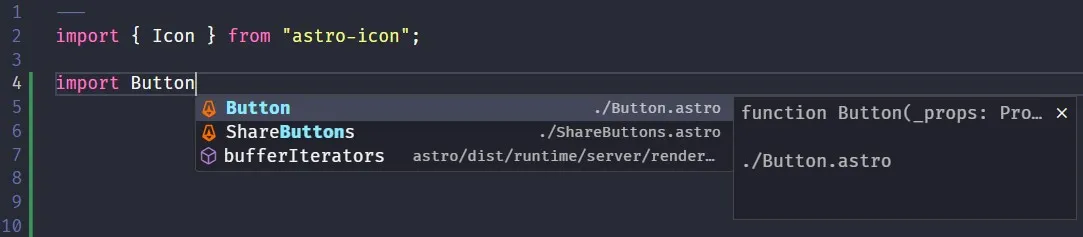
To the surprise of no one, you should have the Astro Extension installed! This provides language support for .astro files, including
- Syntax & semantic highlighting
- Diagnostic messages
- IntelliSense completions (w/ auto-imports)
- Emmet completions in HTML & CSS
- Props completions for JSX/TSX, Vue, and Svelte components
- Code actions (quick fixes, sort imports, etc)
- Symbols
- Hover info
- Go to definitions, go to type definitions, etc
- Code folding
- and more!
Prettier - Code Formatter
This is an opinionated code formatter that will automatically format your code to a consistent style. This extension is great for teams that want to enforce consistency, or just to keep you from having to worry about formatting your code.
With over 41 million installations, you could say it is popular.

Tailwind CSS IntelliSense
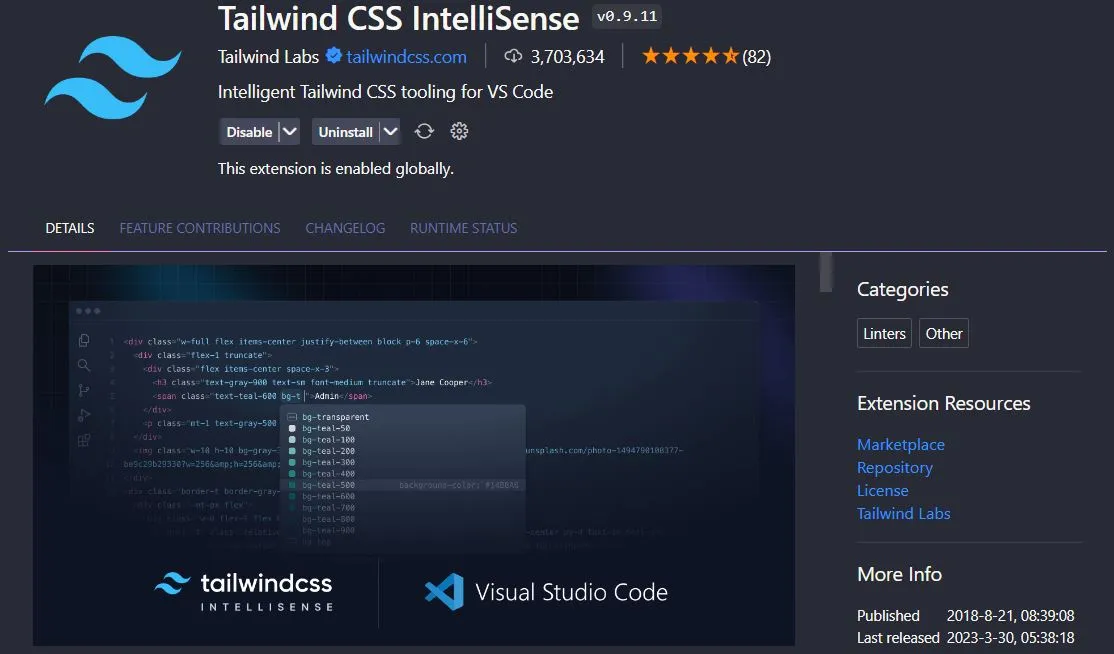
Tailwind CSS IntelliSense provides intelligent autocomplete, syntax highlighting, and linting for Tailwind CSS.
If you are using Tailwind CSS, you will 100% want this extension.
ESLint
ESLint is a configurable linter to help you find and fix problems in your JavaScript code. It can be used for both frontend and backend development, and is a great way to catch bugs before they happen. It can check for mistakes like unused variables, missing semicolons, and more.
Color Highlight
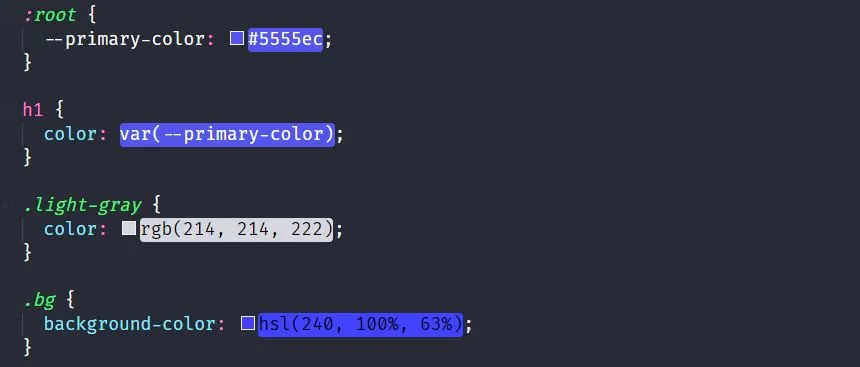
Color Highlight is a simple extension that will highlight colors in your code. This is great for quickly seeing what color a variable is set to, or if you are using the correct color in your CSS.
Better Comments
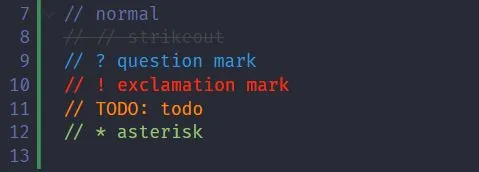
Better Comments improves the comments for your code. It provides syntax highlighting for different types of comments, like the below picture shows.
Material Icon Theme
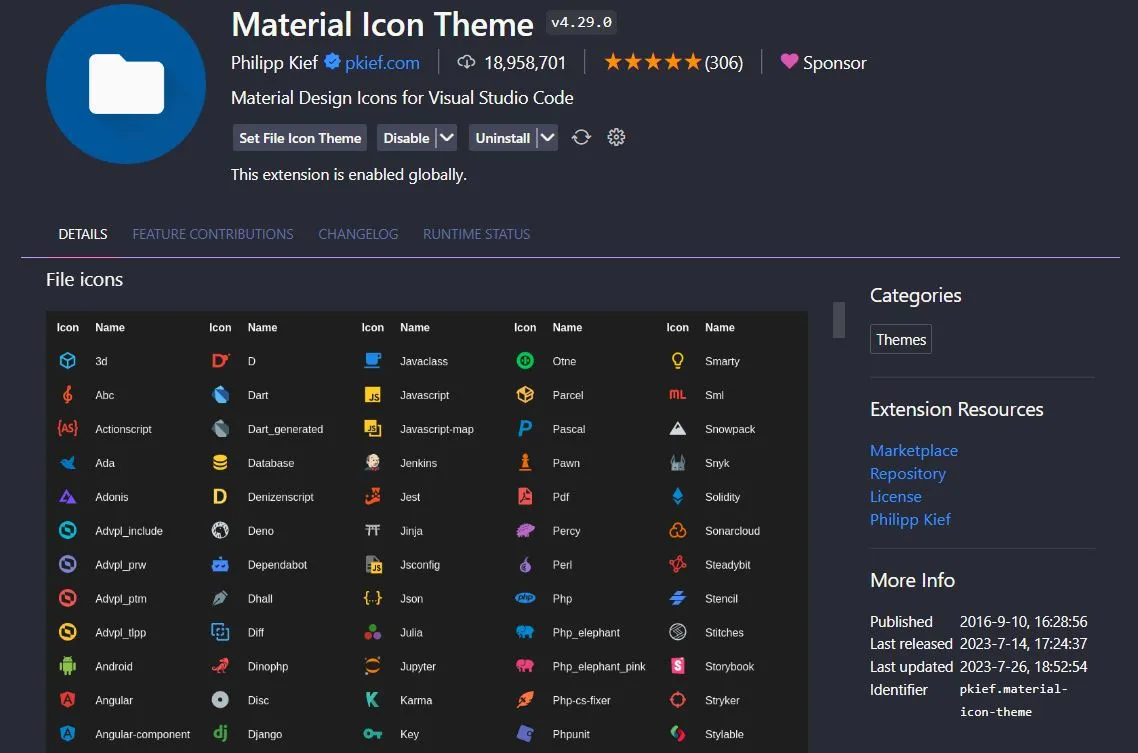
Material Icon Theme provides icons for files and folders in VSCode. This makes it easier to find what you are looking for, and makes your code window look nicer.
Dracula Official
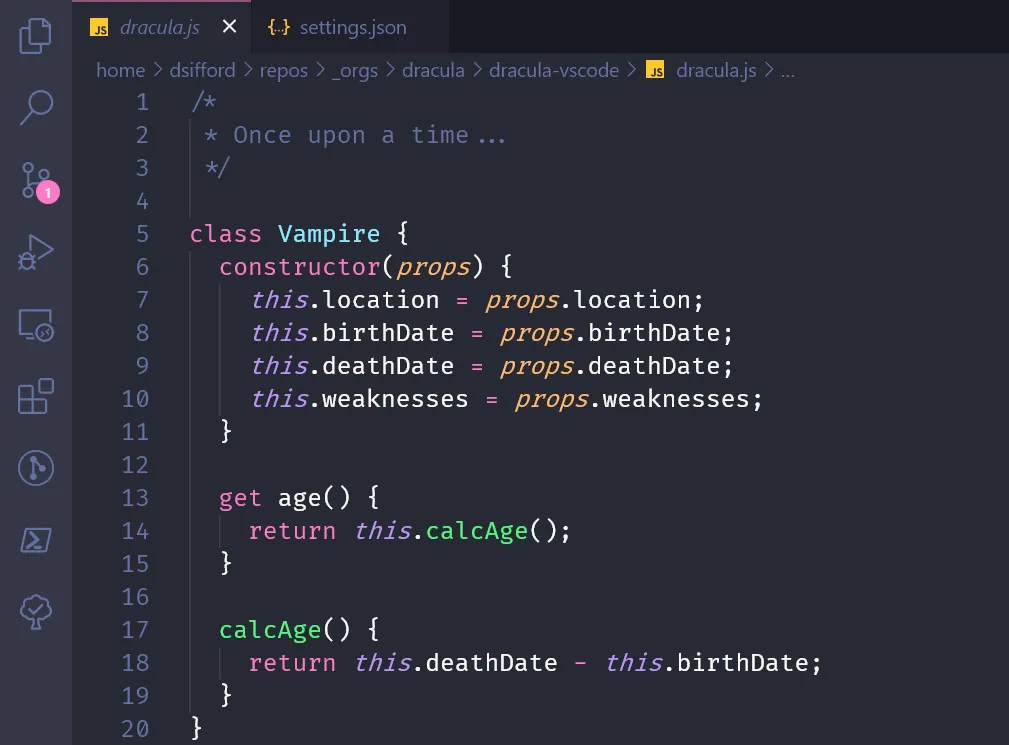
Dracula Official is a dark theme for VSCode. It is one of the most popular themes on the marketplace, and my personal favorite theme.
If you don’t like this particular theme, you should pick a different theme to install in VSCode, as they can provide additional syntax highlighting support.
Pretty TypeScript Errors
Pretty TypeScript Errors provides a more readable error message, and provides a link to the documentation for the error. I have fallen in love with this extension for TypeScript development.

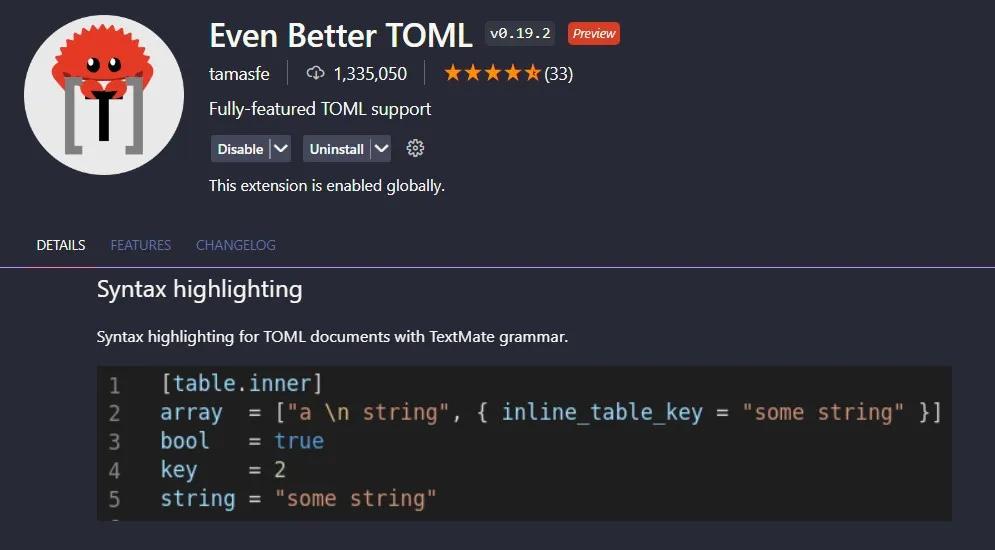
Even Better TOML
If you use .toml files at all, this provides syntax highlighting for them. For instance, I use this for every website for my Netlify configuration file netlify.toml
CodeTour
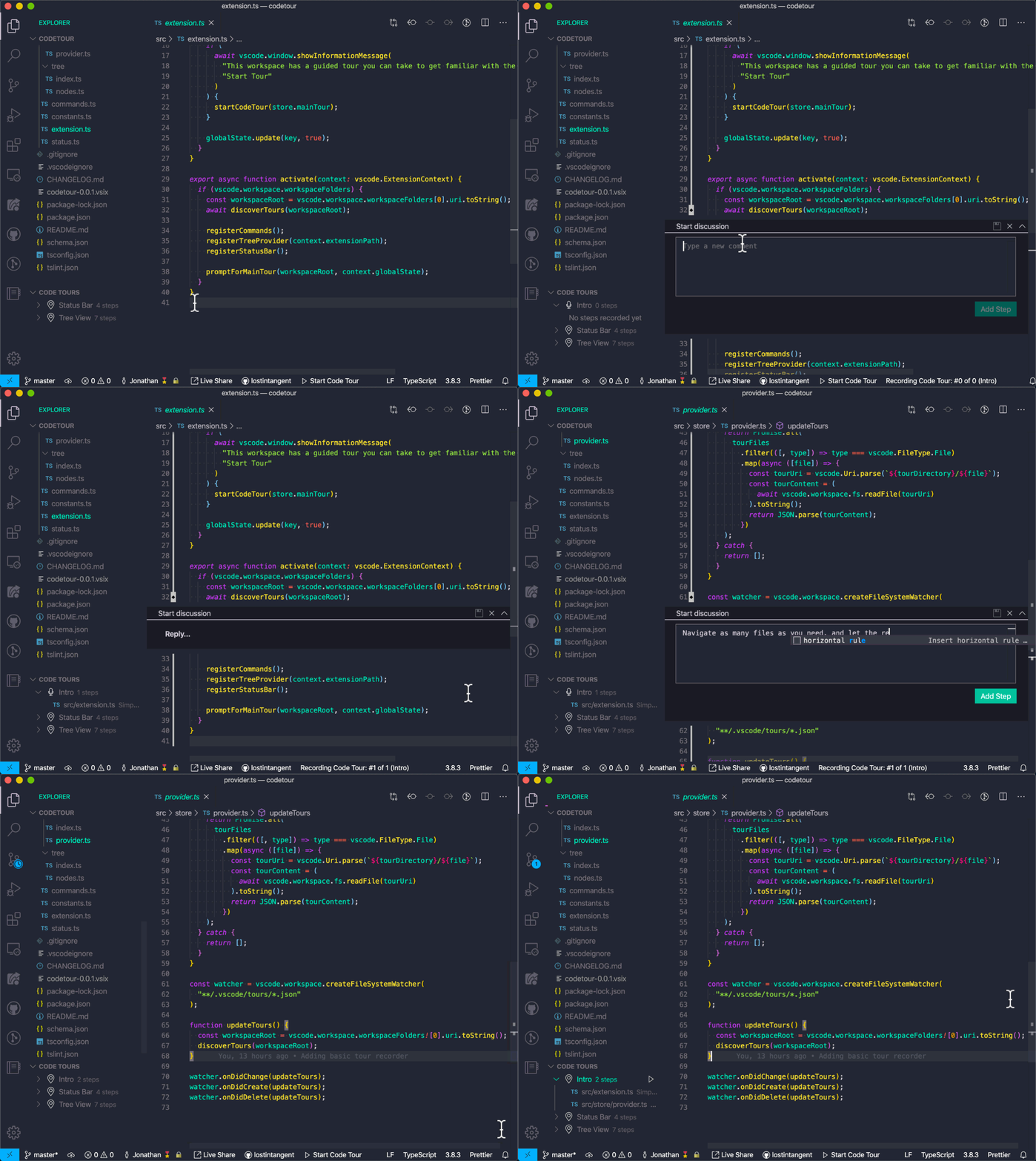
CodeTour allows you to record and playback guided tours of codebases, directly within the editor. This is great for onboarding new developers, or just for documenting your codebase.
In fact, there is a code tour I include with every theme I create!
Production-ready Astro Templates
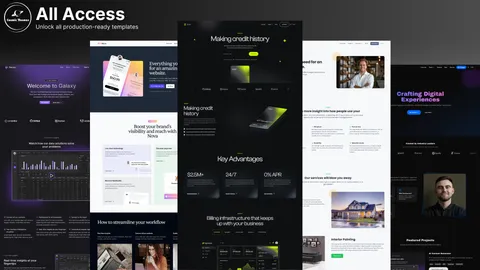
Templates with tons of features others leave out. I18n, CMS, animations, image optimization, SEO, and more.
IDE settings.json
Now you can go copy in my settings.json file and get to work!
To access your settings file in Windsurf, open up Windsurf and press ctrl + , . Then a little down the page click “Open Editor Settings”. Then in the top right corner of this page you will see a little file icon with an arrow. If you hover over it, it will say “Open Settings (JSON)”, click this. There are similar procedures for VSCode and Cursor.
Now you can copy in the below settings file to set up your editor like mine! I’ve included a few comments for some detail.
TIP
I use the “Fira Code” font family by default. But on smaller systems, like a laptop, I prefer smaller font, thus “JetBrains Mono”. Both of these require that you have installed them on your system (they are free).
{  // general settings  "workbench.colorTheme": "Dracula Theme",  "workbench.iconTheme": "material-icon-theme",  "editor.fontFamily": "'Fira Code', 'JetBrains Mono', Consolas, 'Courier New', monospace",  "editor.fontLigatures": true,  "editor.fontWeight": 400,  "editor.formatOnSave": true,  "git.confirmSync": false,  "breadcrumbs.enabled": false,  "editor.inlineSuggest.enabled": true,  "extensions.ignoreRecommendations": false,  "editor.detectIndentation": false,  "editor.tabSize": 2,  "files.eol": "\n",  "editor.quickSuggestions": {    "strings": true  },  "security.workspace.trust.untrustedFiles": "open",
  // terminal settings  "terminal.integrated.profiles.windows": {    "PowerShell": {      "source": "PowerShell",      "icon": "terminal-powershell",      "args": ["-ExecutionPolicy", "Bypass"]    }  },  "terminal.integrated.defaultProfile.windows": "PowerShell",
  // associate file types with languages  "files.associations": {    "*.svg": "html",    "*.ejs": "html",    "*.mdx": "markdown",    "*.mdoc": "markdown",    "*.cjs": "javascript",    "*.mjs": "javascript"  },
  // auto close tags. Takes the place of the extension "Auto Close Tag"  "html.autoClosingTags": true,  "javascript.autoClosingTags": true,  "typescript.autoClosingTags": true,
  // auto rename tags. Takes the place of the extension "Auto Rename Tag"  "editor.linkedEditing": true
  // emmet  "emmet.includeLanguages": {    "javascript": "javascriptreact"  },
  // formatters for various languages - mostly prettier  "prettier.tabWidth": 2,  "[astro]": {    // "editor.defaultFormatter": "astro-build.astro-vscode"    // See https://cosmicthemes.com/blog/astro-eslint-prettier-setup/    "editor.defaultFormatter": "esbenp.prettier-vscode"  },  "[html]": {    "editor.defaultFormatter": "vscode.html-language-features"  },  "[mdx]": {    "editor.defaultFormatter": "esbenp.prettier-vscode"  },  "[css]": {    "editor.defaultFormatter": "esbenp.prettier-vscode"  },  "[javascript]": {    "editor.defaultFormatter": "esbenp.prettier-vscode"  },  "[scss]": {    "editor.defaultFormatter": "esbenp.prettier-vscode"  },  "[jsonc]": {    "editor.defaultFormatter": "esbenp.prettier-vscode"  },  "[json]": {    "editor.defaultFormatter": "esbenp.prettier-vscode"  },  "[typescript]": {    "editor.defaultFormatter": "esbenp.prettier-vscode"  },  "[typescriptreact]": {    "editor.defaultFormatter": "esbenp.prettier-vscode"  },  "[toml]": {    "editor.defaultFormatter": "esbenp.prettier-vscode"  },
  // Tailwind CSS  "tailwindCSS.emmetCompletions": true,  "tailwindCSS.includeLanguages": {    "javascriptreact": "javascript"  },
  // get rid of @tailwind and @apply warnings  "css.lint.unknownAtRules": "ignore",  "scss.lint.unknownAtRules": "ignore",
  // tailwind-variants https://www.tailwind-variants.org/docs/getting-started#intellisense-setup-optional  "tailwindCSS.experimental.classRegex": [    ["([\"'`][^\"'`]*.*?[\"'`])", "[\"'`]([^\"'`]*).*?[\"'`]"]  ],}